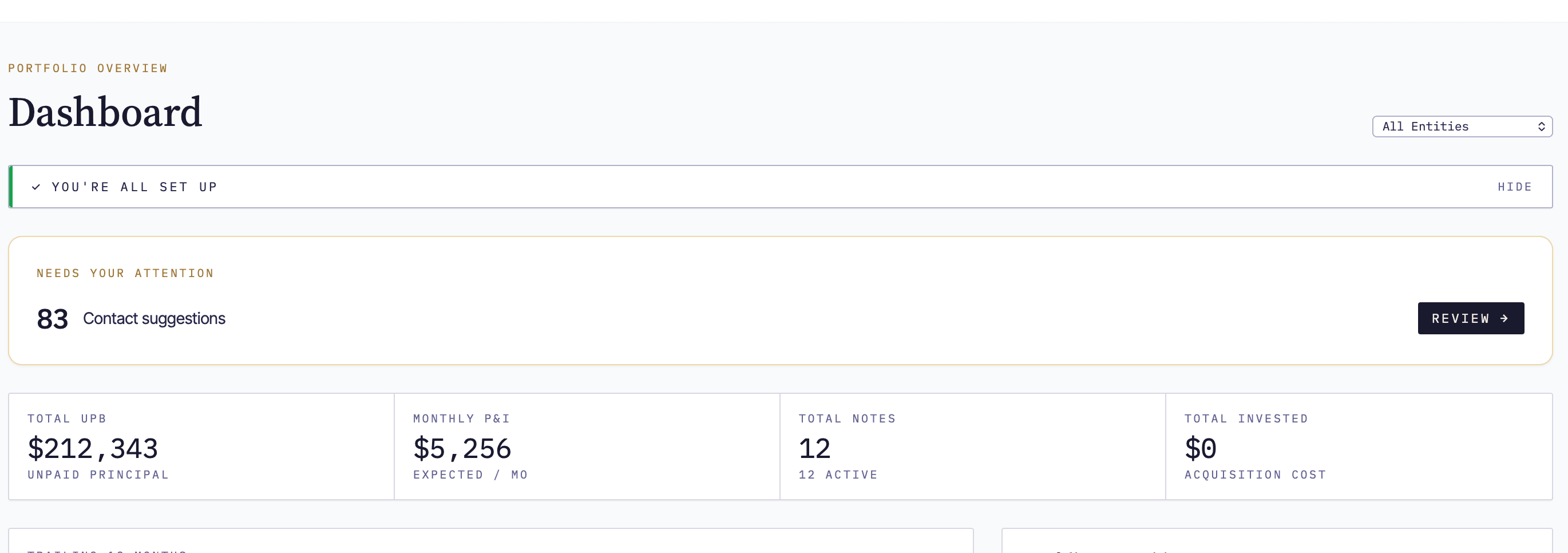
Sign up for NoteLedger, verify your email, and complete the welcome wizard so you can start tracking your mortgage note portfolio — the whole process takes about five minutes.
Visit the sign-up page
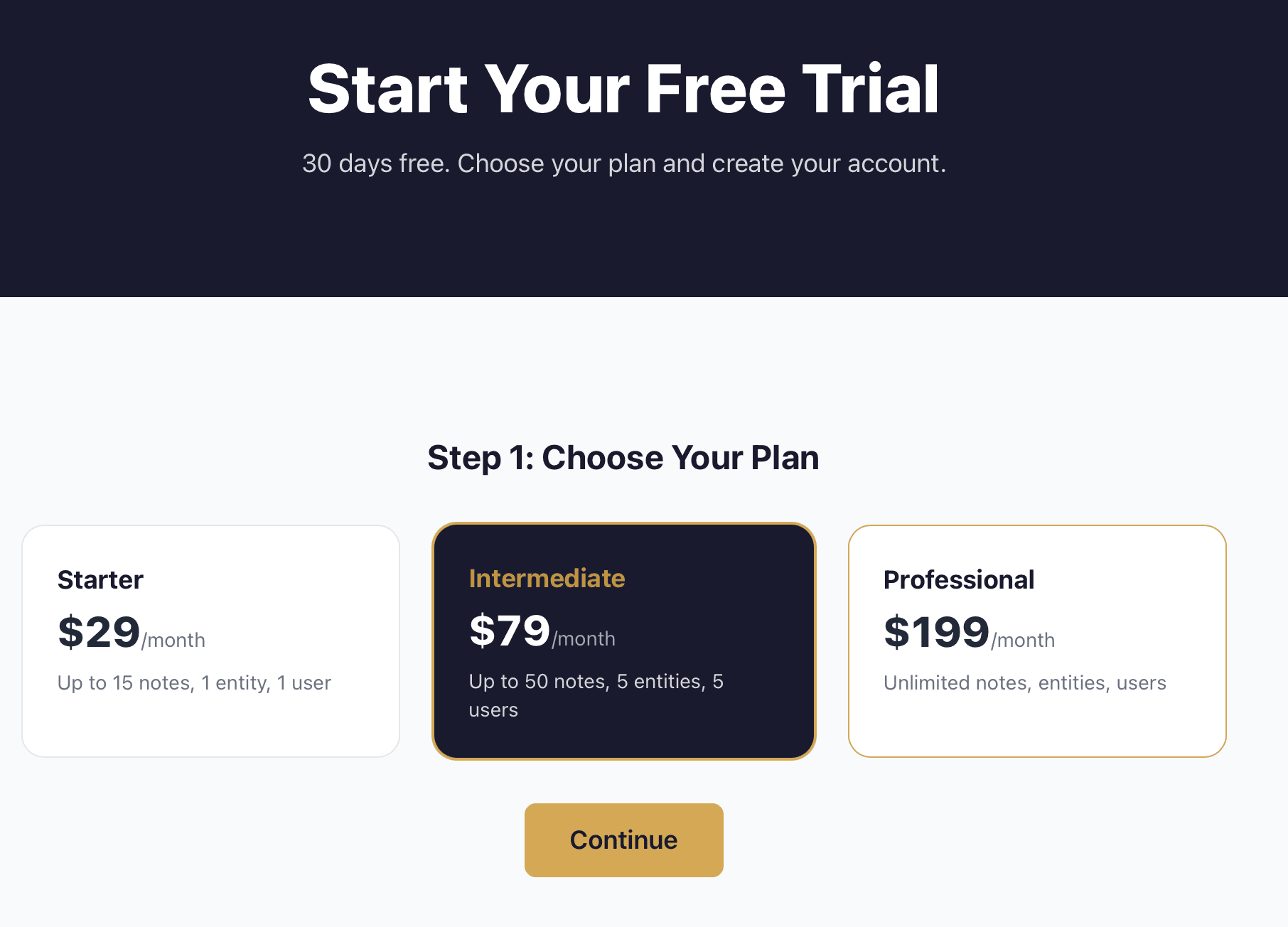
Go to noteledger.io/signup. You will land on the sign-up page, which shows the three available plans.
Choose your plan
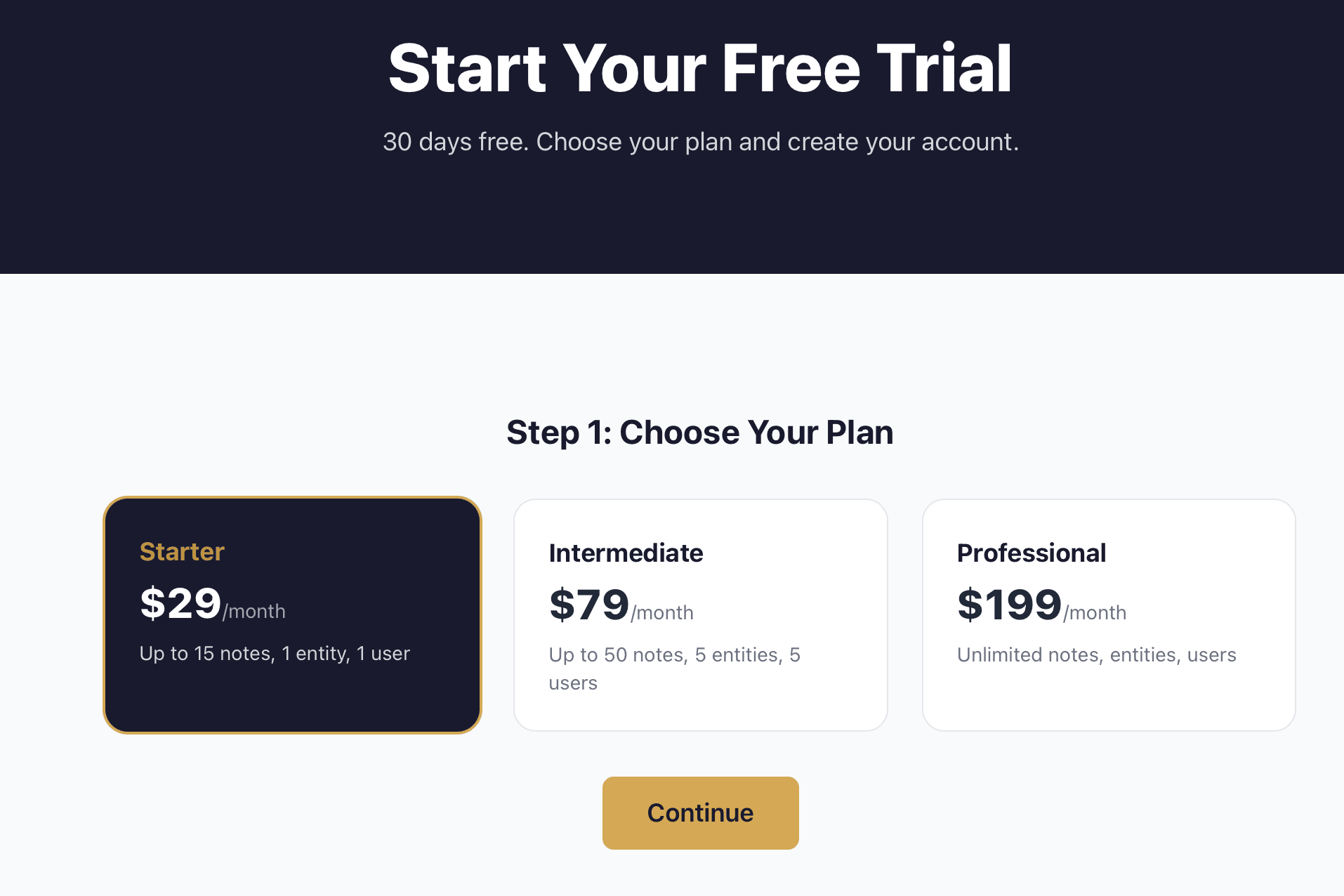
Click the plan card that fits your portfolio size. The three options are:
- Starter — $29/month, up to 15 notes, 1 entity, 1 user
- Intermediate — $79/month, up to 50 notes, 5 entities, 5 users
- Professional — $199/month, unlimited notes, entities, users
The selected plan card becomes highlighted. When you are ready, click Continue.
Fill in your account details
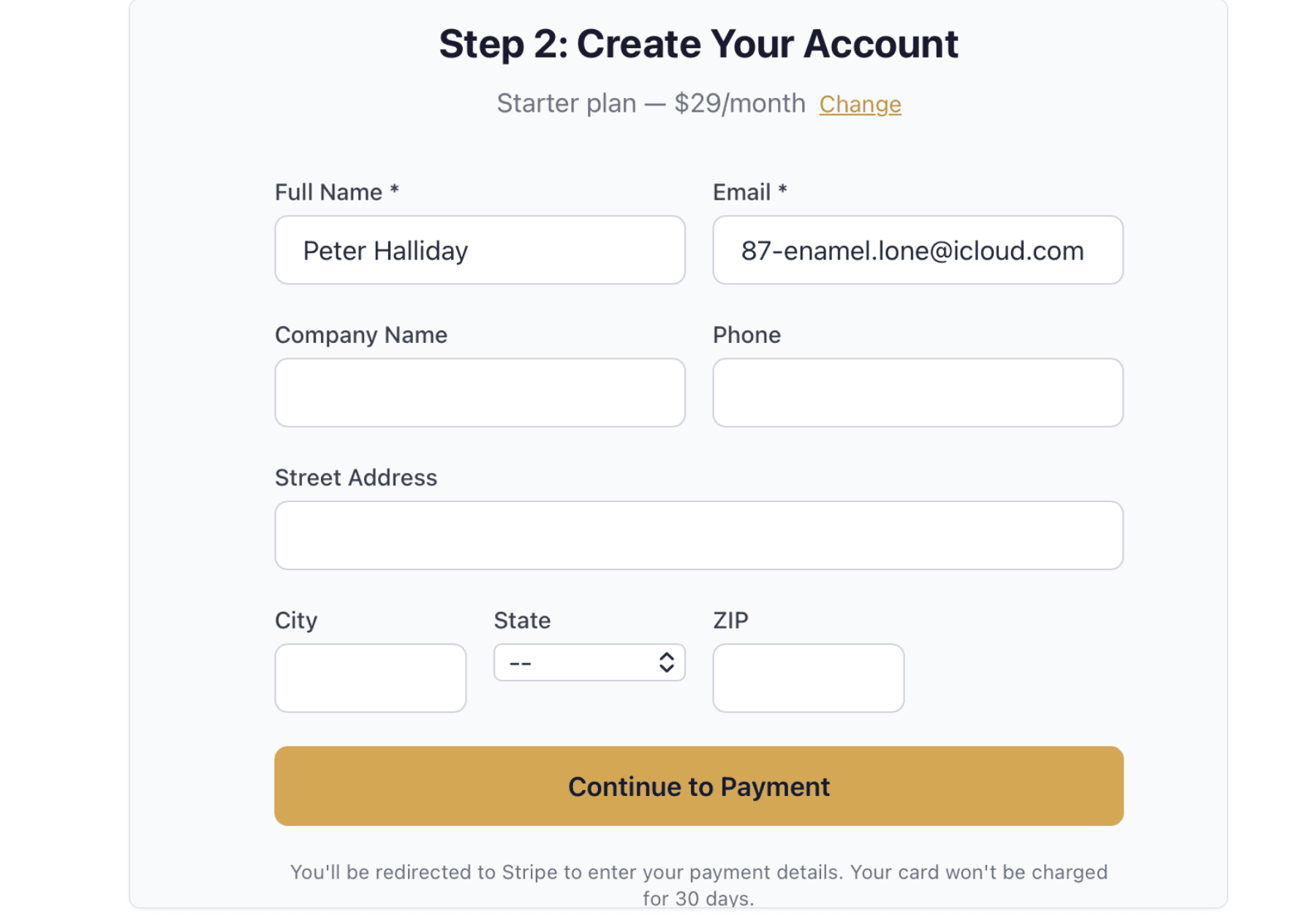
You are now on the account details step. Complete the form:
- Full Name (required) — your full name
- Email (required) — the email address you want to use to log in
- Company Name — your LLC, trust, or fund name (optional)
- Phone — optional
- Street Address, City, State, ZIP — optional company address
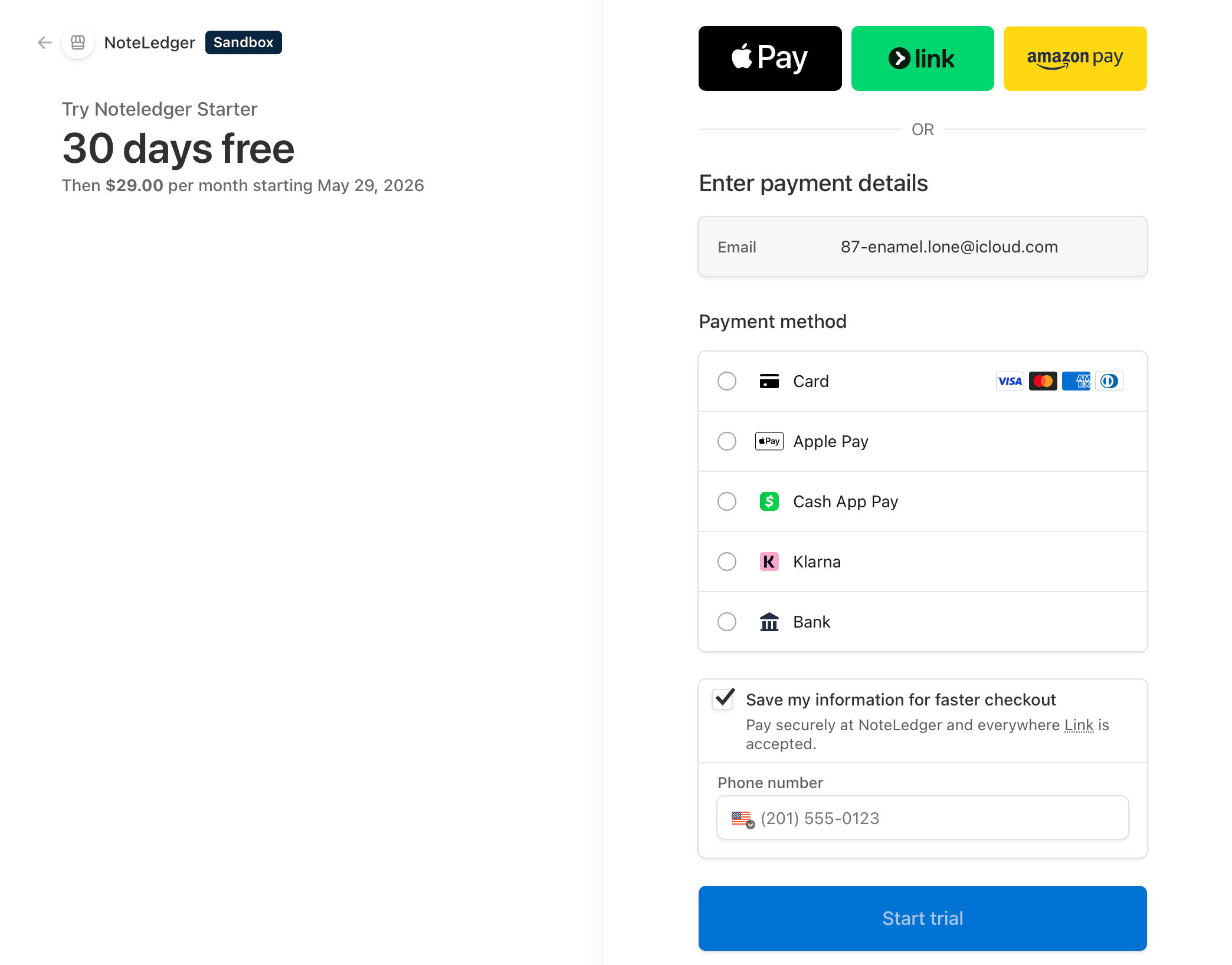
When everything looks right, click Continue to Payment. You will be redirected to Stripe to enter your card details. Your card will not be charged for 30 days.
Complete payment in Stripe
Stripe Checkout opens with the plan you selected pre-filled. Enter your card number, expiry, CVC, and billing ZIP, then submit the form. Once payment is accepted, Stripe returns you to the NoteLedger confirmation page.
Check your email and set your password
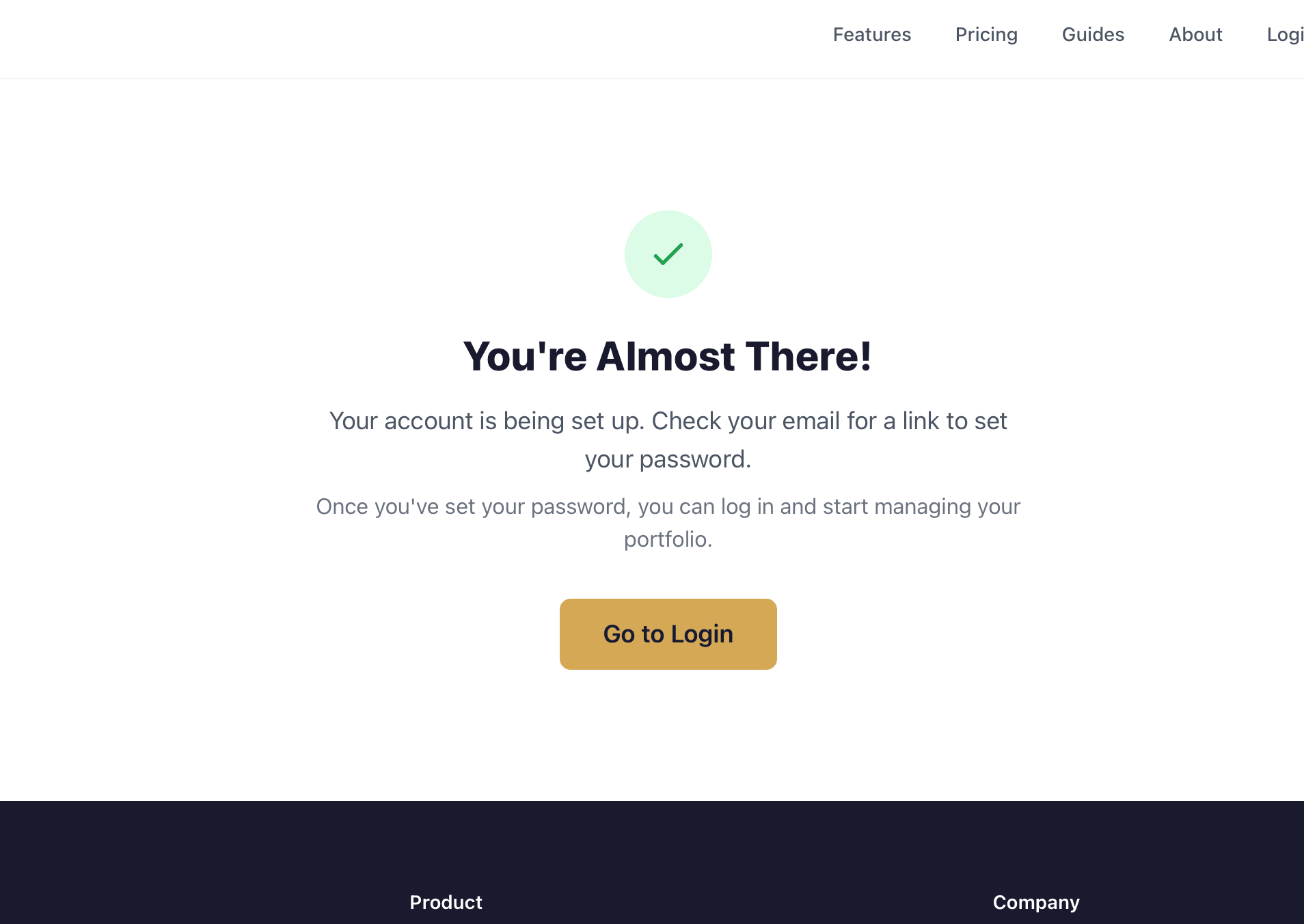
You will land on a confirmation page. NoteLedger now sends an email to the address you entered with a link to set your password.
Open that email, click the link, and choose a strong password. Once your password is saved, click the Go to Login button — or follow the link in the email directly to the login page.
Log in to the app
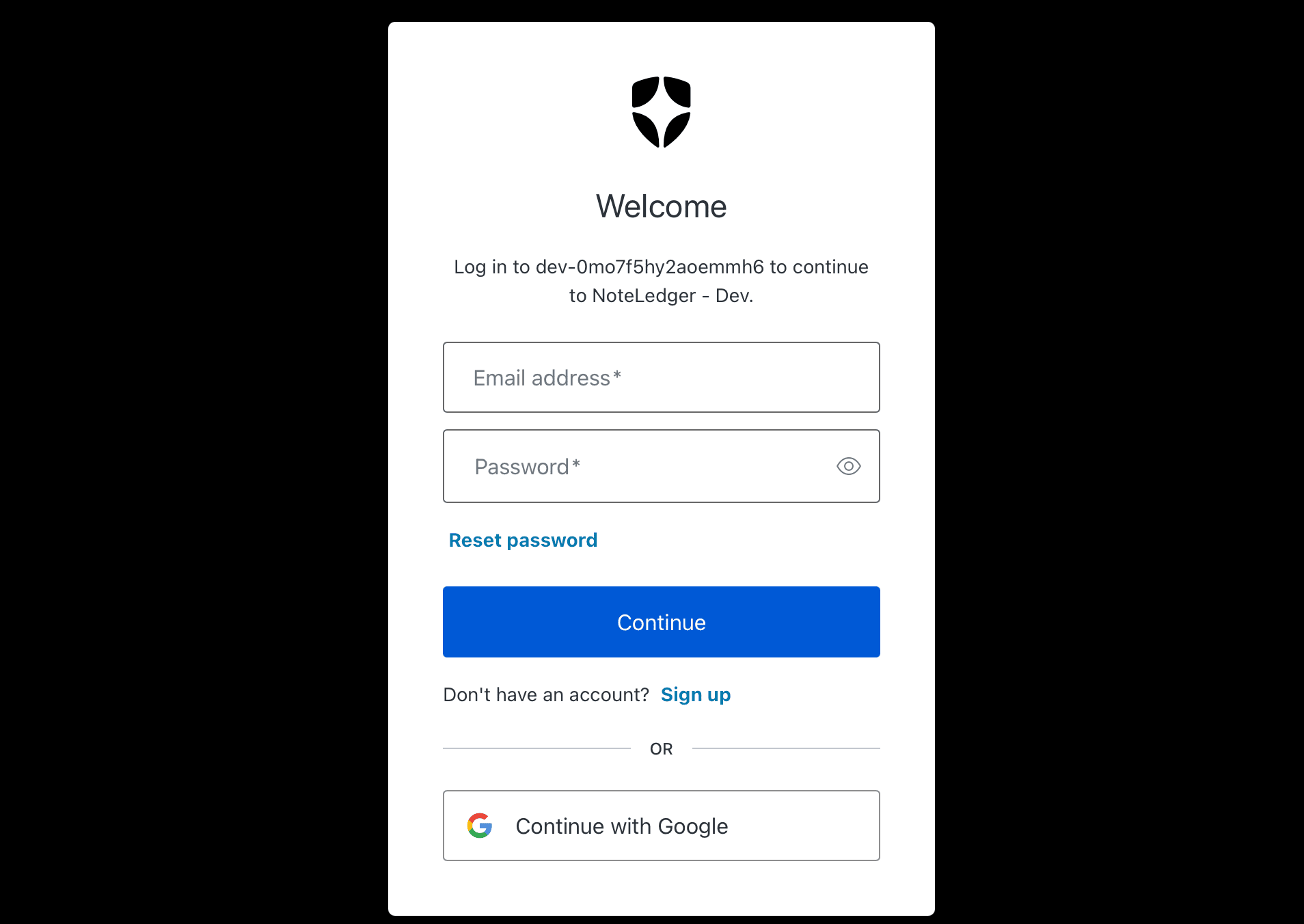
On the login page, enter your email and the password you just set, then submit. After a successful login the app opens and the welcome wizard appears automatically.
Welcome wizard — get started
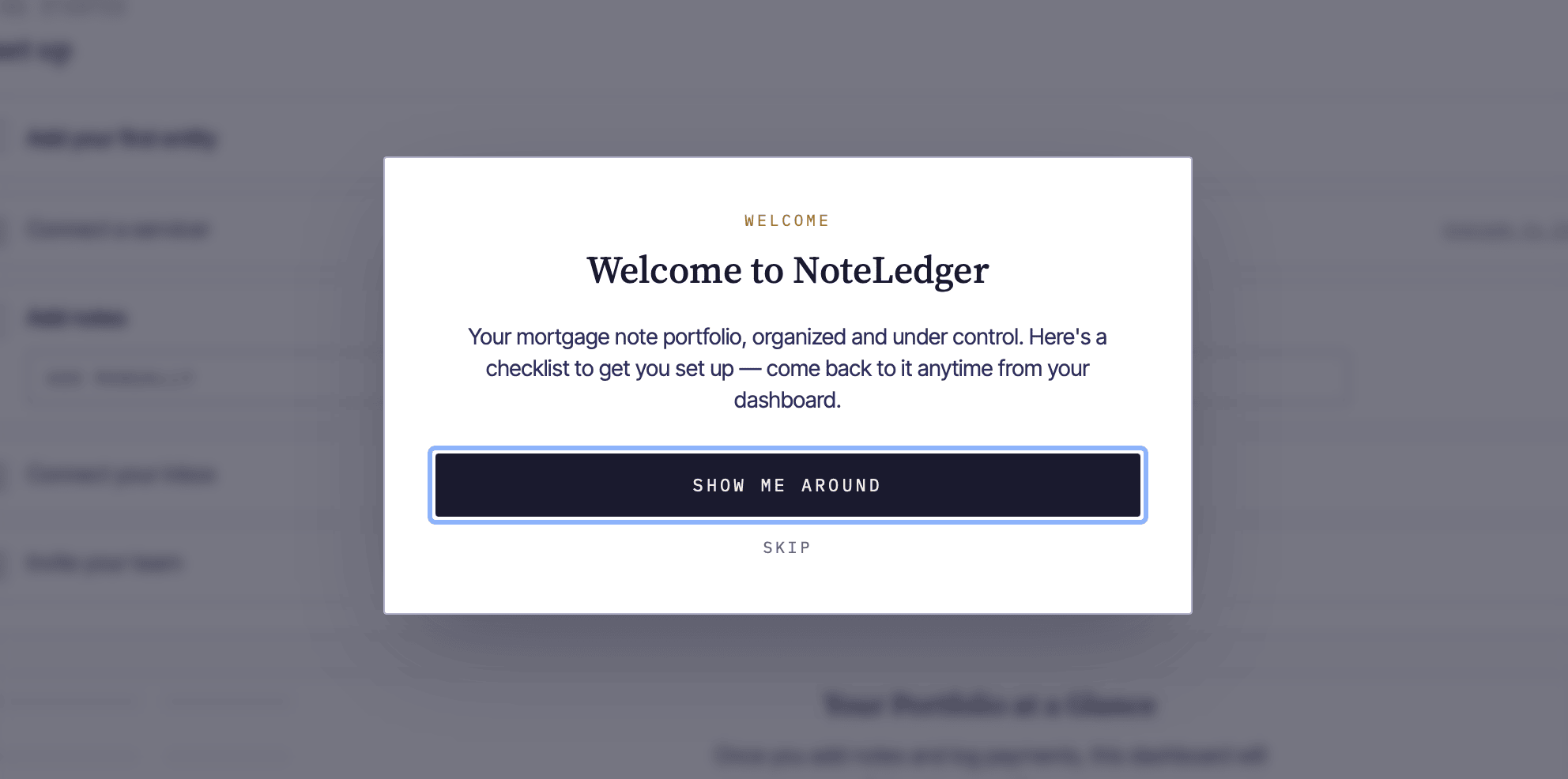
The Welcome to NoteLedger dialog opens. Read the short intro — "NoteLedger gives you one place to track every note, every payment, and every entity in your portfolio" — then click Let's Get Started to move to step 1 of the wizard.
If you prefer to explore on your own, click I'll explore on my own to dismiss the wizard.
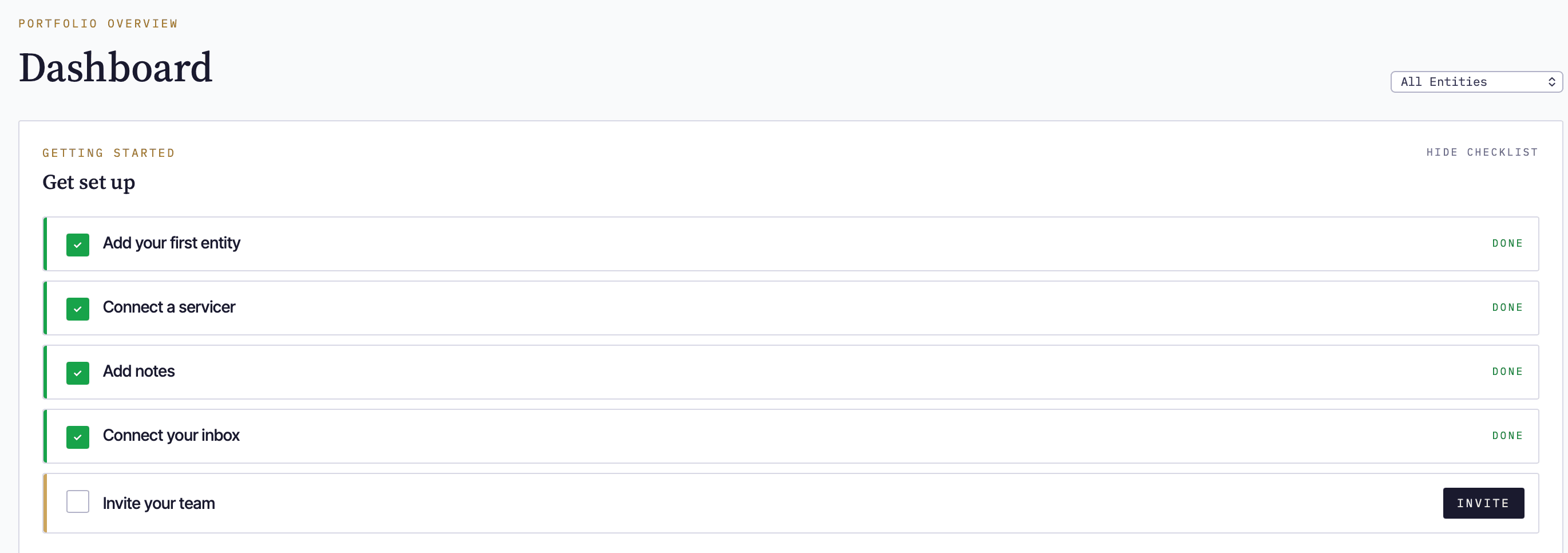
Dashboard Get Set Up — Persistent onboarding
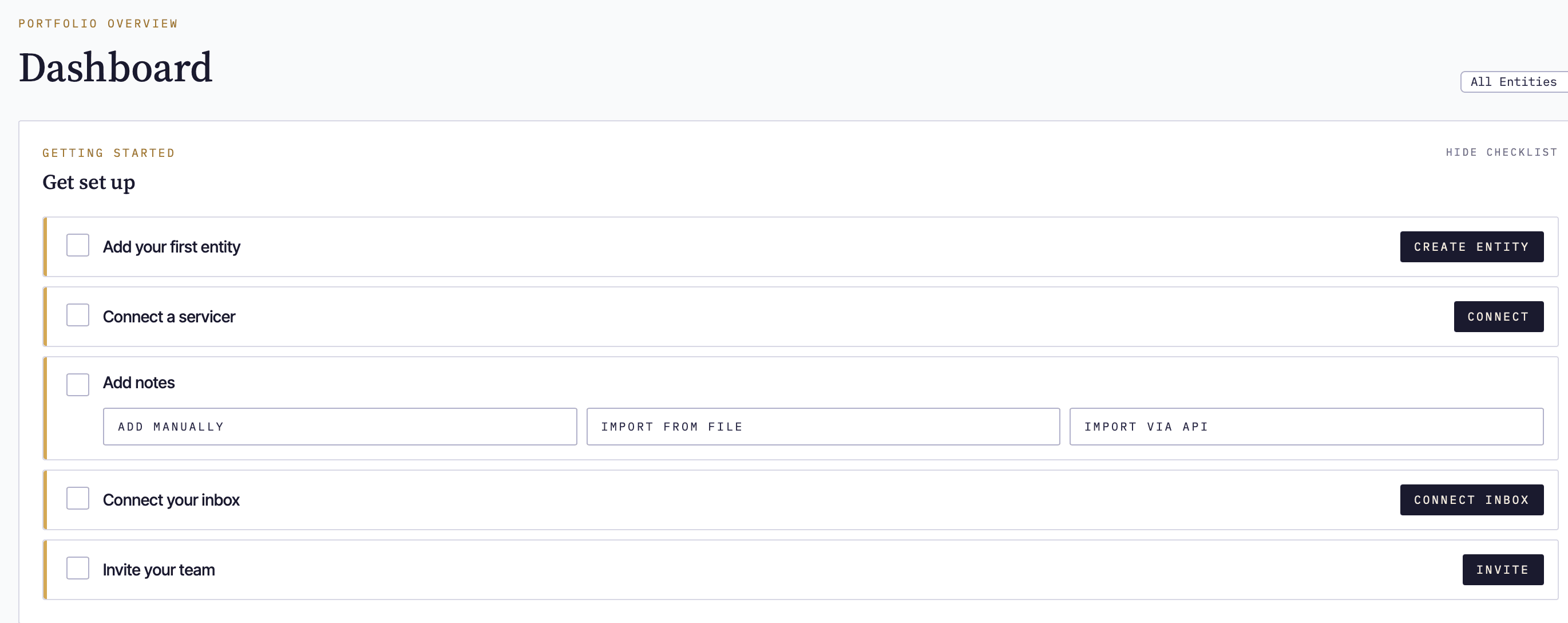
The Dashboard has a prominant and persistent checklist of the items you should do to get started. The first things to do is setup your entity.
You can always Dismiss the Checklist at any time.
The first step is Add Your First Entity. Most note investors hold notes through LLCs, trusts, or self-directed accounts. Click Create an Entity to open the new-entity form and create your first holding entity now.
If you want to come back to this later, click Skip for now — you can always add entities from the sidebar.
Dashboard Get Set Up — Connect a servicer
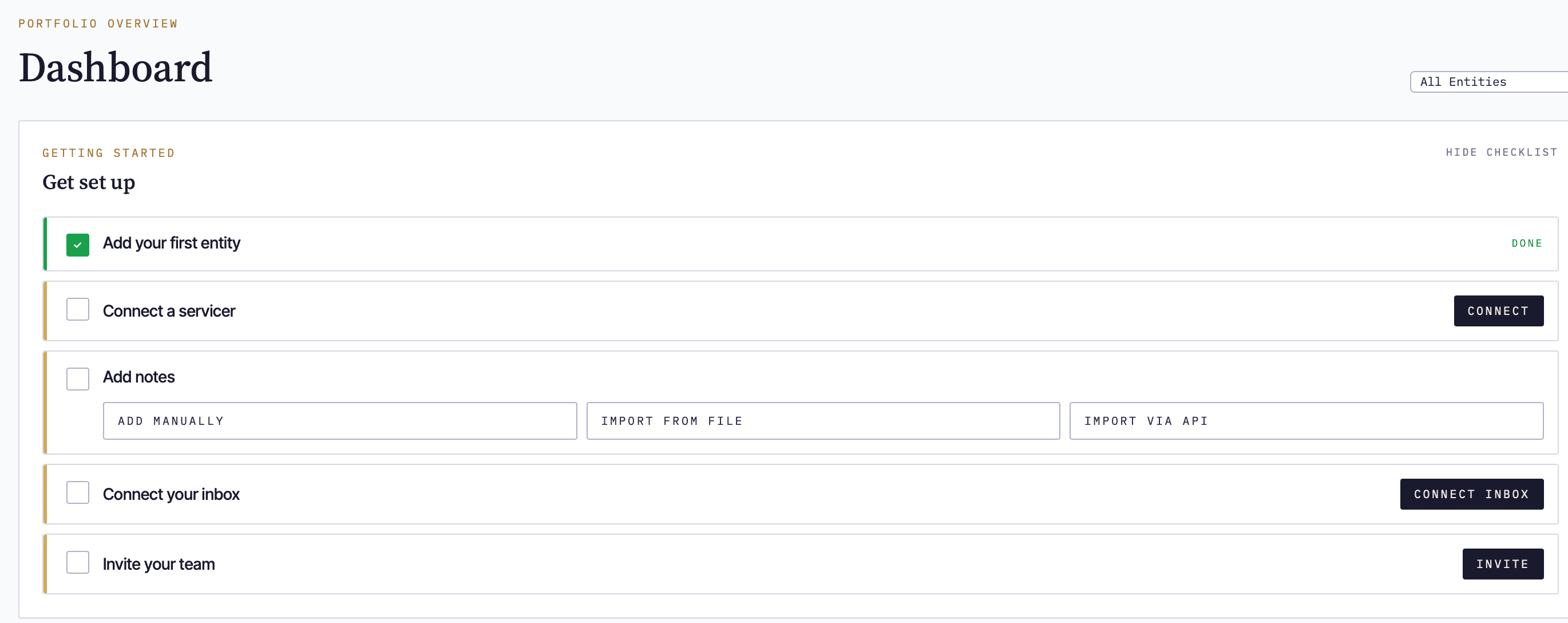
The second step is Connect a Servicer. Most note investors don't self-service. Click Connect to add in API keys for all of the Servicers.
If you want to come back to this later, click Skip for now — you can always add entities from the sidebar.
Dashboard Get Set Up — Add notes
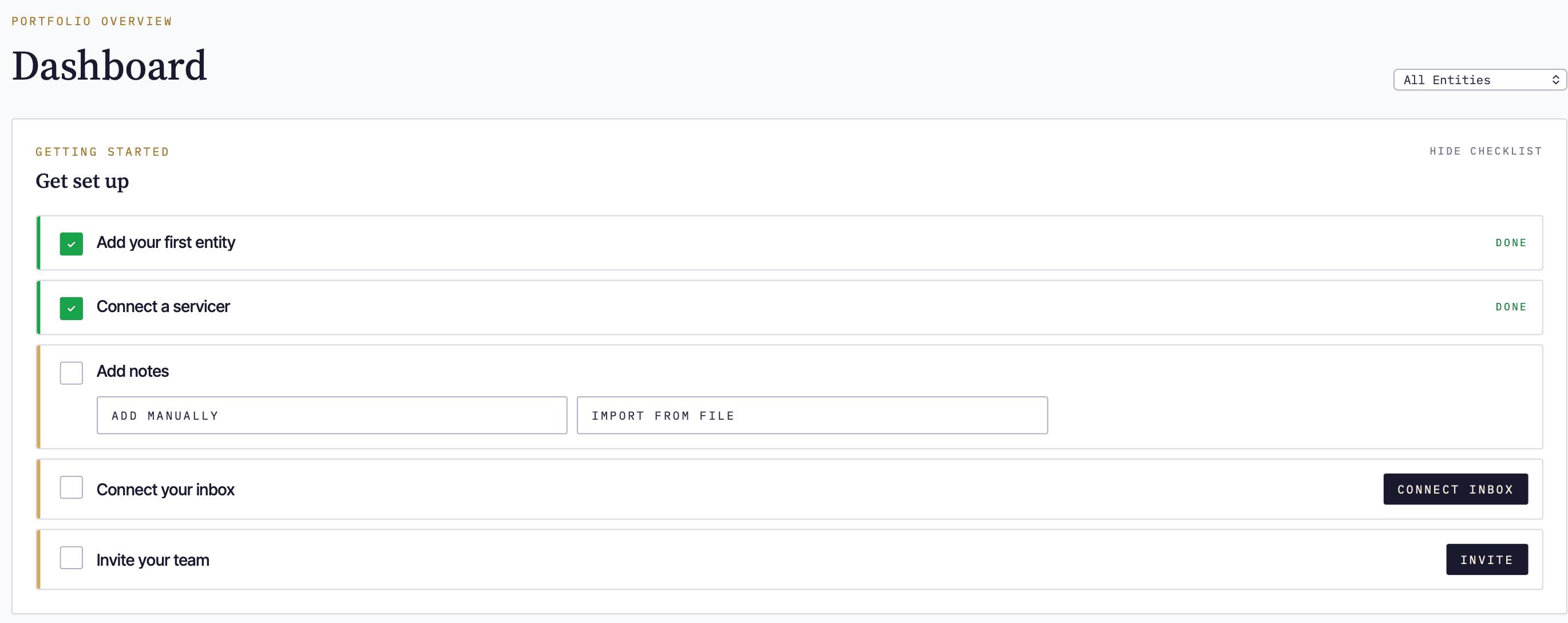
The second step is Bring In Your Notes. You have two options:
- Add Manually — enter note details one at a time
- Import From File — import notes and payments automatically from Allied, Madison, FCI, or a file-based import
- Import Via API - Only available for Intermediate or above. Setup the API credentials and your note details will be imported automatically.
Click the option that fits your workflow. You can also click Skip for now and add notes any time from the Notes page.
Dashboard Get Set Up — Connect your Inbox
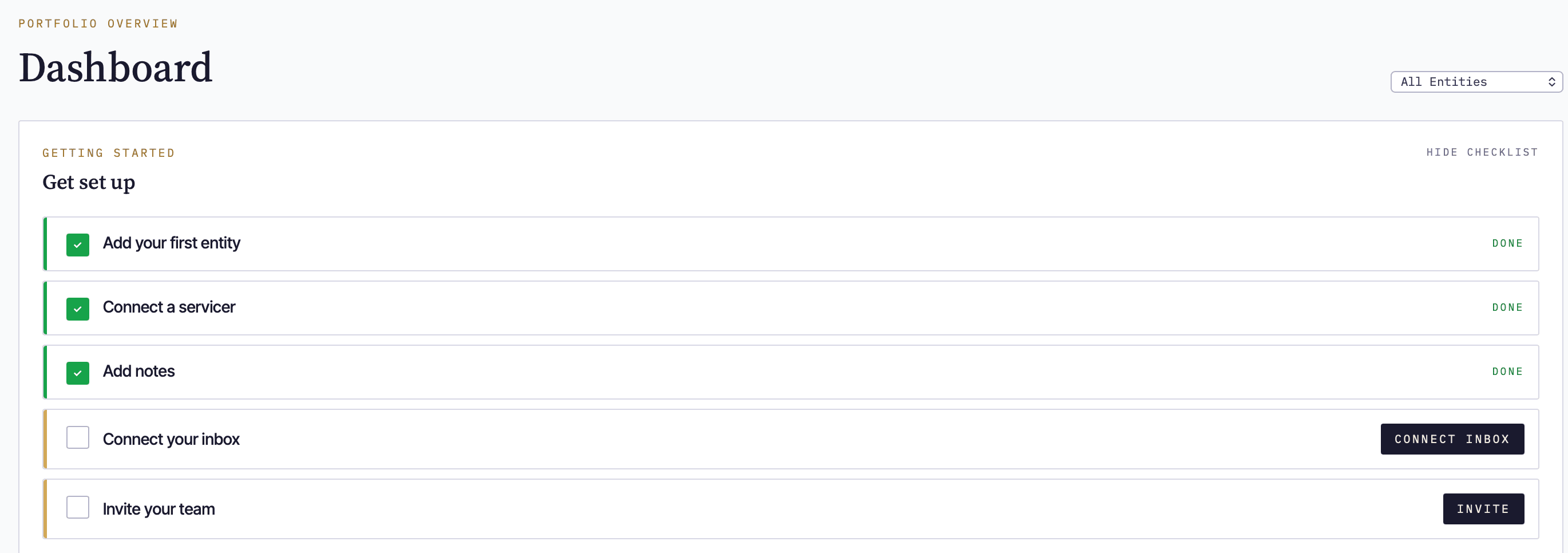
The fourth step is Connect Your Inbox. Click Conneect Inbox to select from either Gmail or Office365.
This allows two methods of import. First, you can import contacts from either addressbooks. Second, those on Professional have smart contact surfacing. It looks at the frequency and sometimes Subject to determine if a contact should be presented for import.
Wizard step 5 — Invite your Team
The final step is to invite others who you want to collaborate with. This is only available for accounts using Intermediate or above.
You're All Set Up
After you've completed all the steps you'll see the You're All Set Up message. It will persist on your Dashboard. Dismiss it by clicking Hide.