Link your Madison Management account to NoteLedger using an API key so payments, loan data, and servicer notes are pulled in automatically without manual file uploads.
Obtain your API key from Madison Management
Log in to the Madison investor portal to request or retrieve your API key. Madison issues one key per investor account.
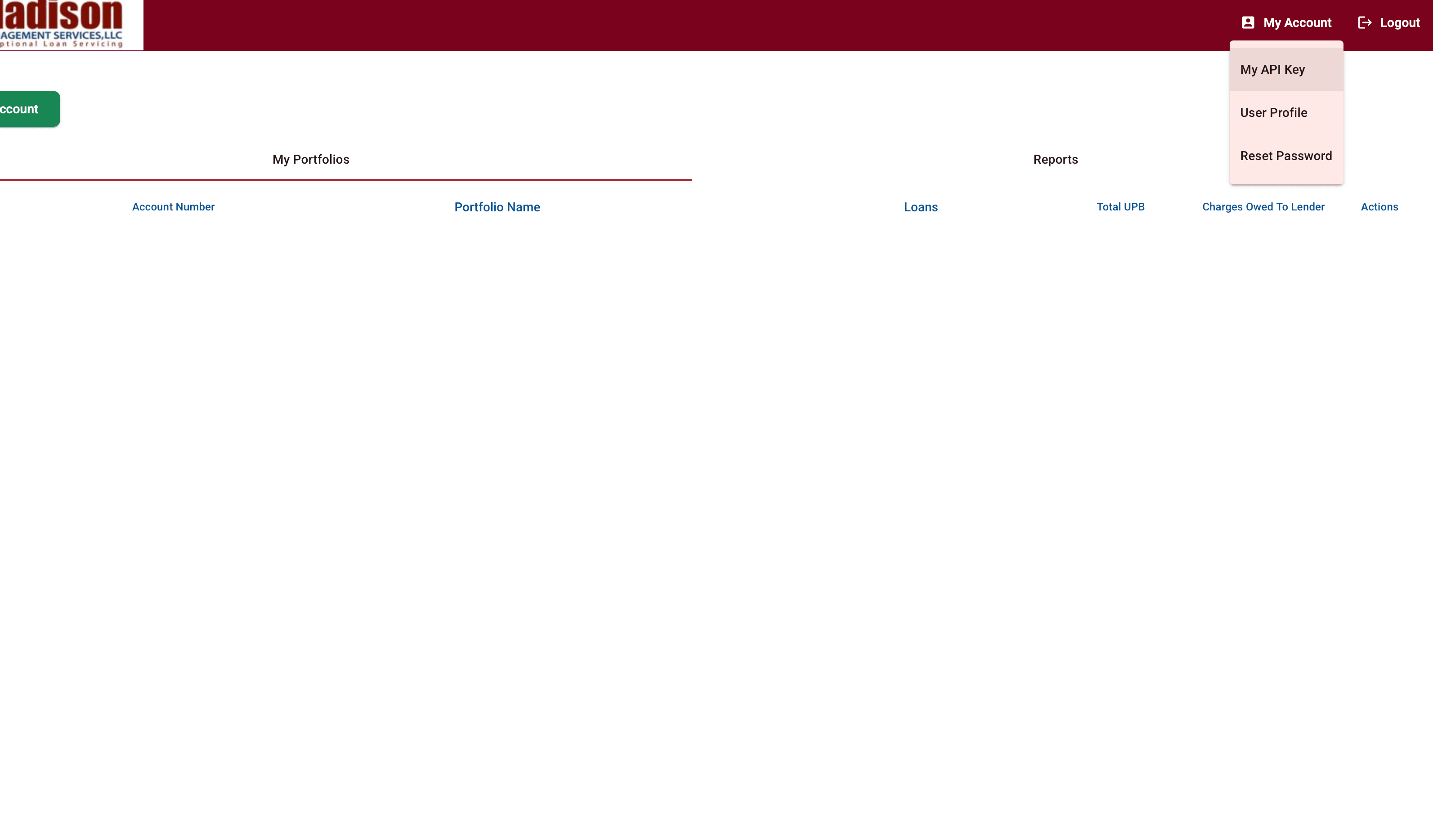
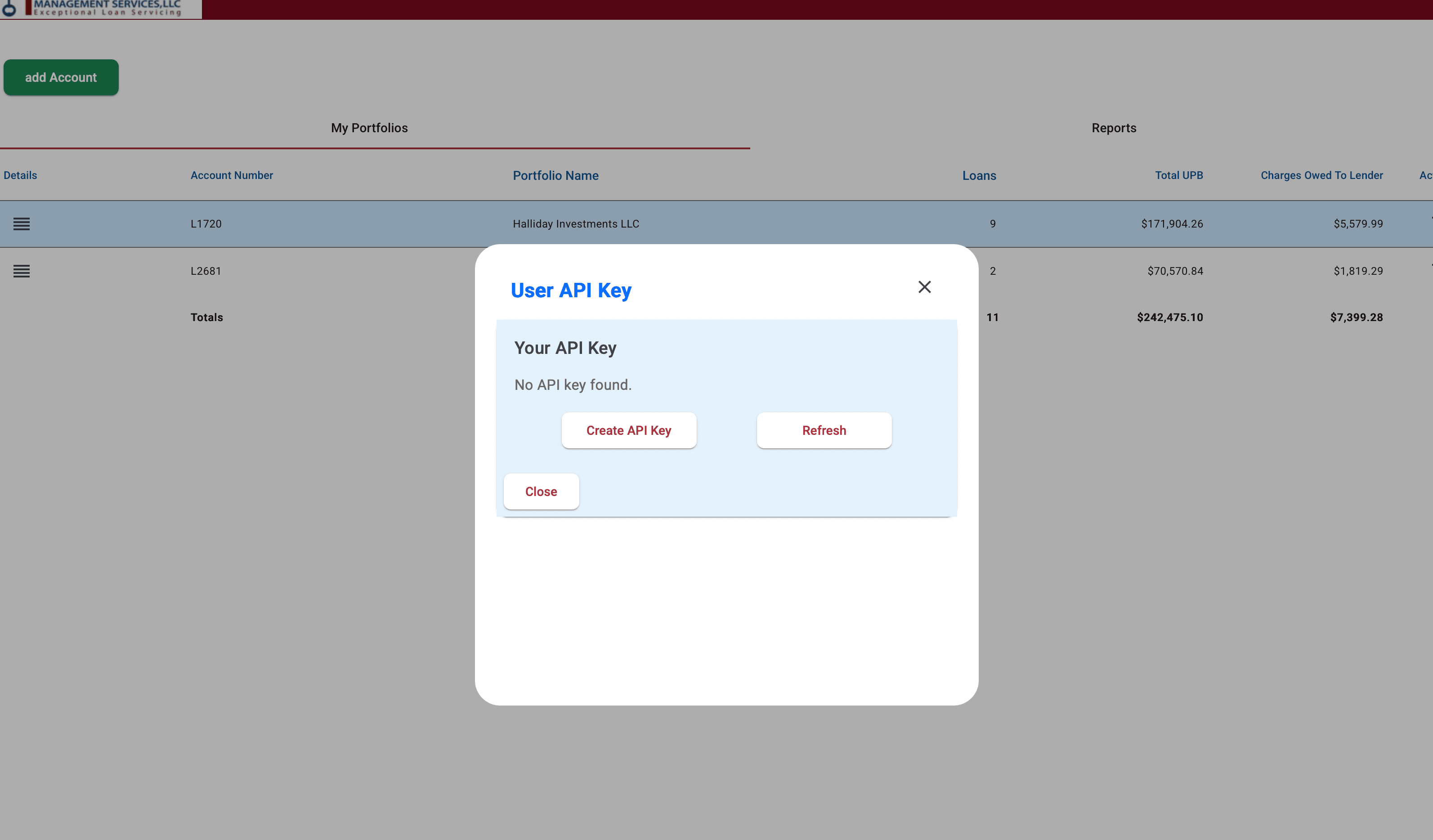
You can click My Account in the top right corner, and then click API Key. Then click the Create API Key button.
Once you have the key, keep it somewhere safe — you will paste it into NoteLedger in a later step.
Navigate to Servicers
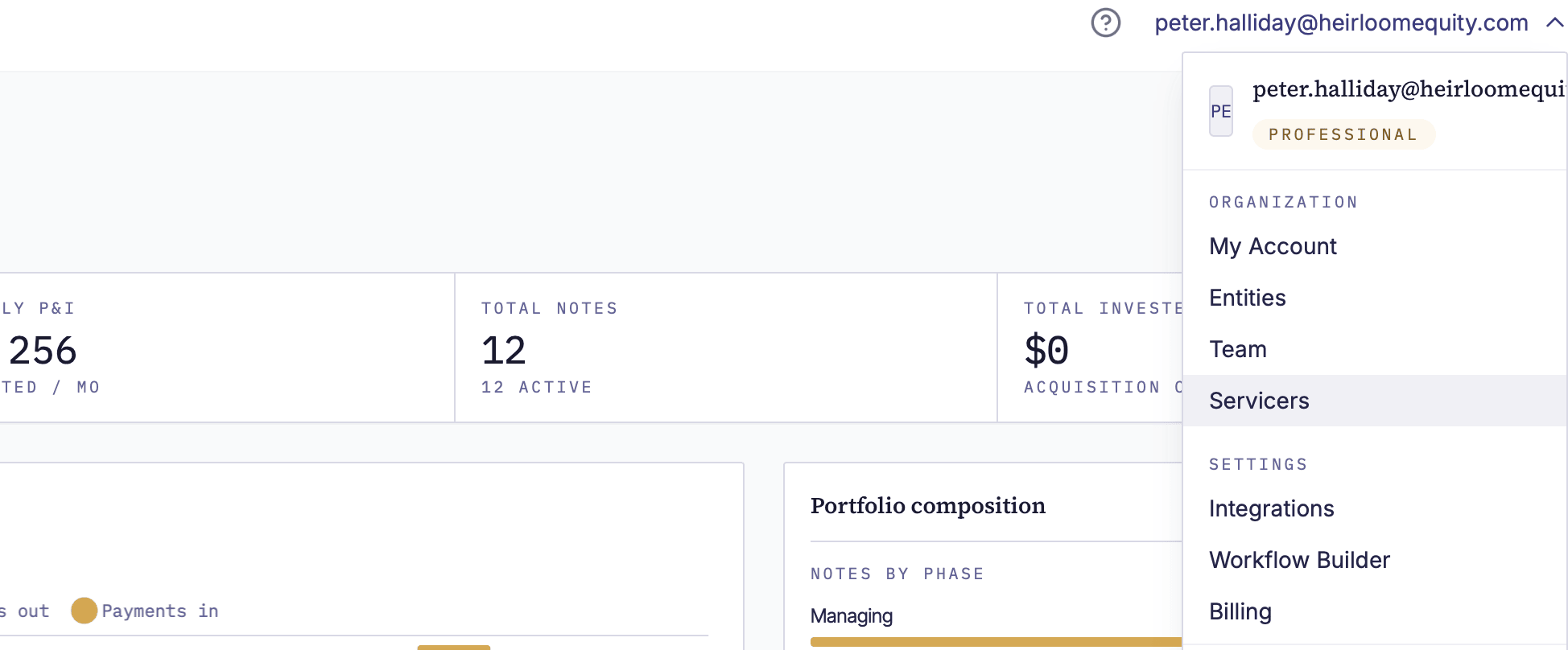
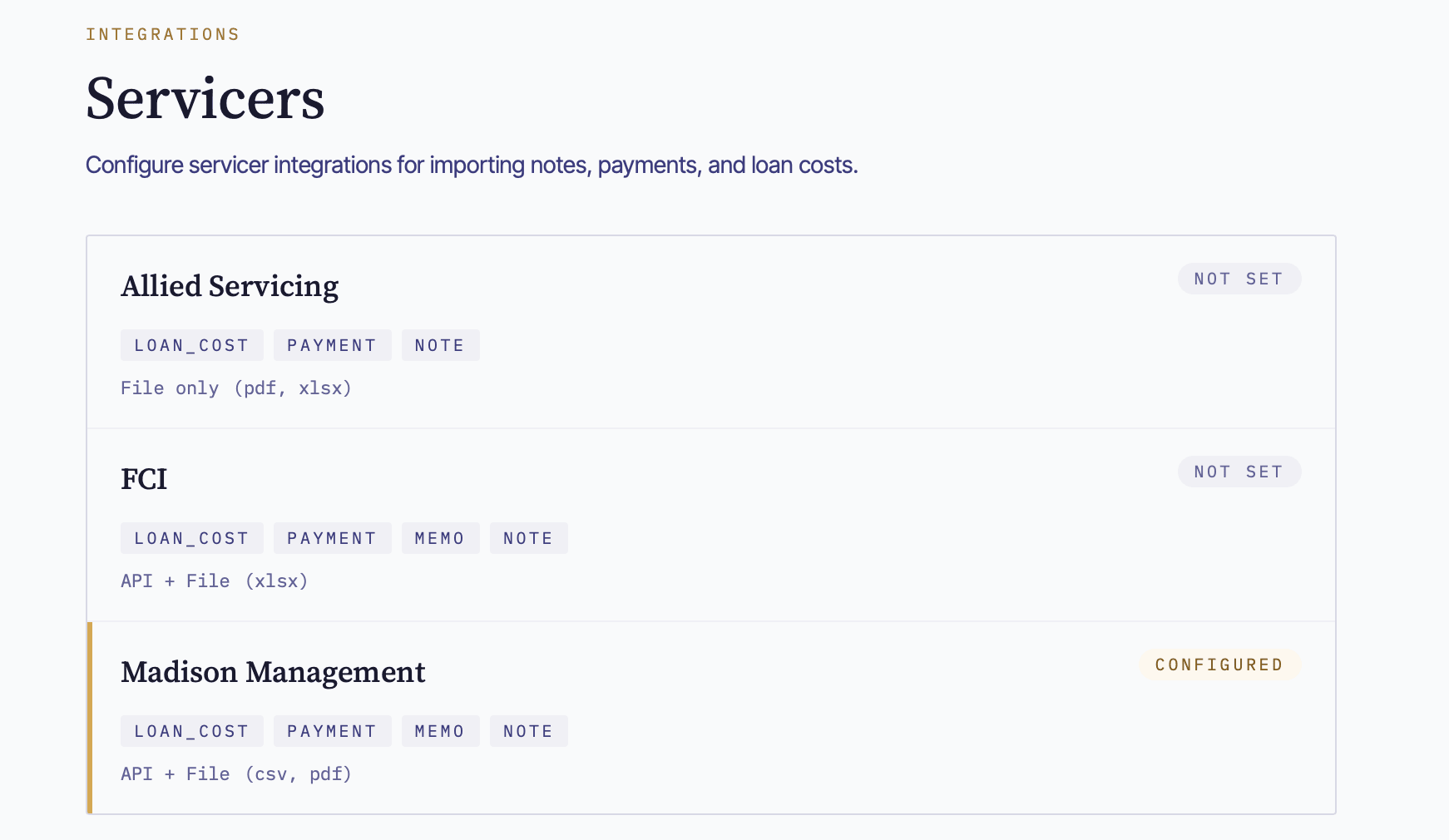
In the top-right user menu, click your email, then click Servicers in the dropdown. You will land on the Servicers page, which lists every servicer integration available in your account.
Open the Madison Management card
On the Servicers page, find the card labeled Madison Management. The card shows a Not Configured badge if no API credentials have been saved yet. Click anywhere on the card to open the Madison Management detail page.
Click Configure Credentials
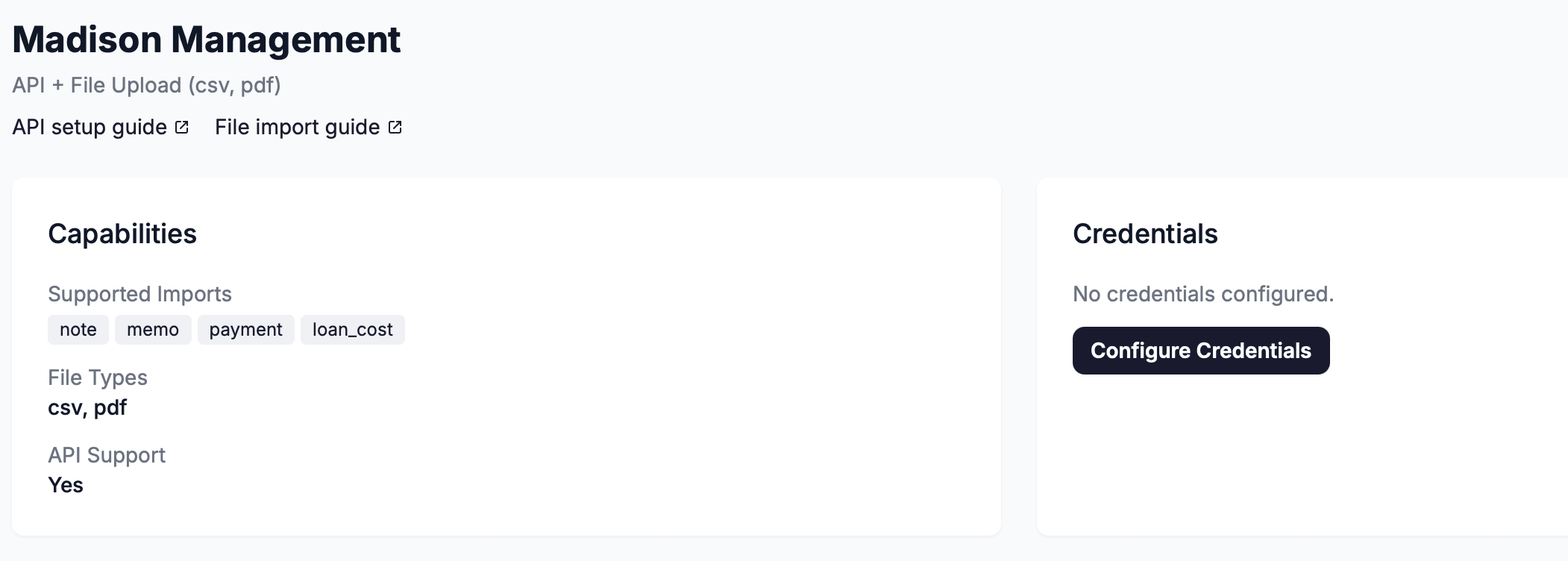
On the Madison Management detail page, scroll down to the Credentials section. Because no credentials are saved yet, the section shows the message "No credentials configured." Click the Configure Credentials button to open the credentials form.
Paste your API key
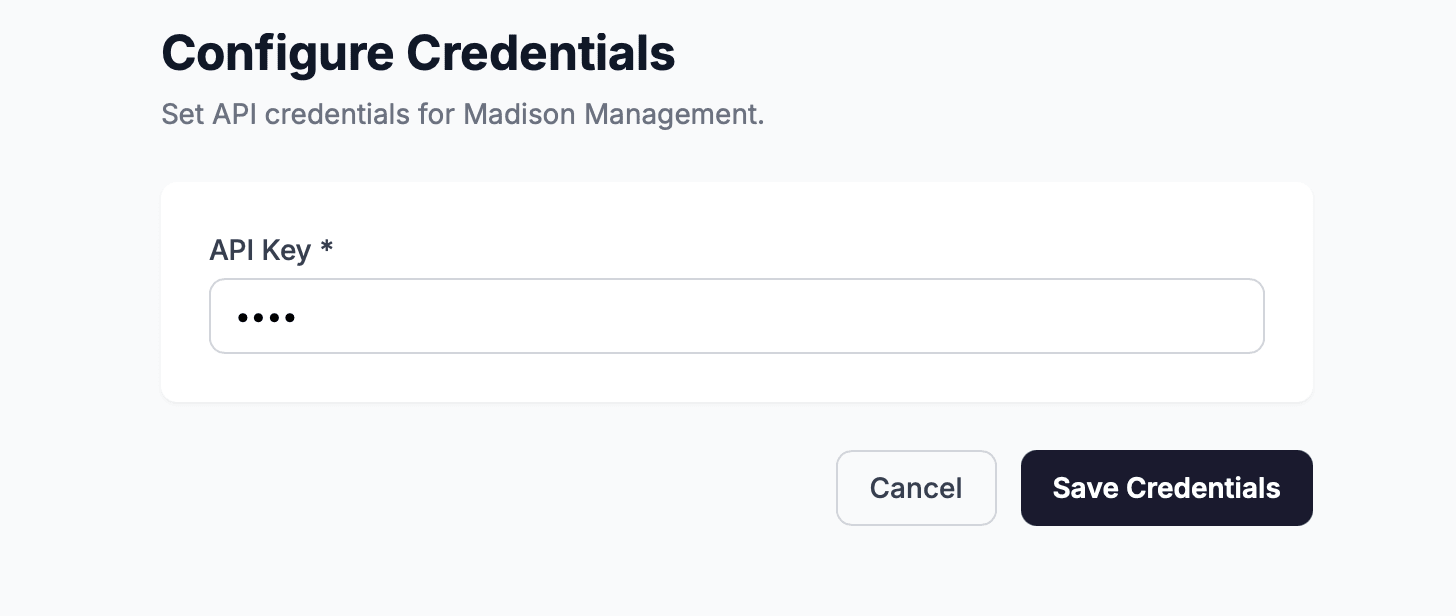
The Configure Credentials form opens. In the API Key field (marked required with an asterisk), paste the API key you obtained from Madison Management in step 1. The field masks input so the key is not visible after you type or paste it. Finally, click the Save Credentials button.
Set the Madison investor ID on each Entity
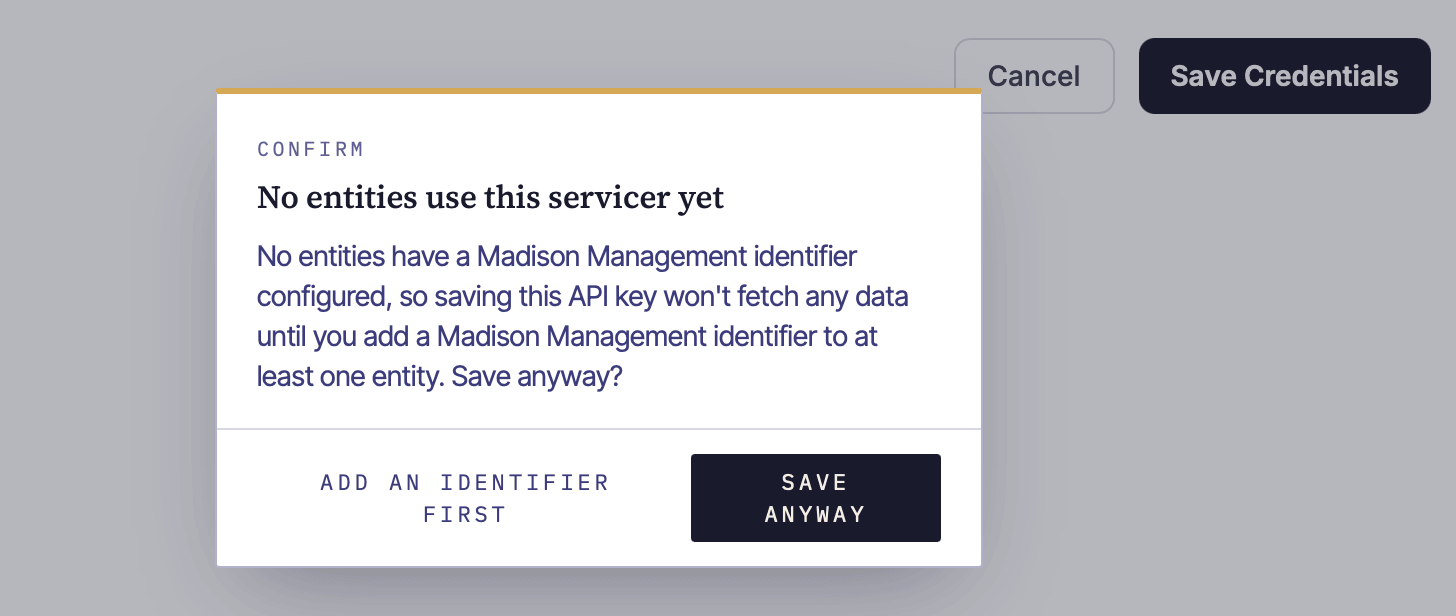
Before the first sync, NoteLedger needs to know which investor ID Madison uses for each of your holding entities. Without this, the sync cannot match loans to the correct entity.
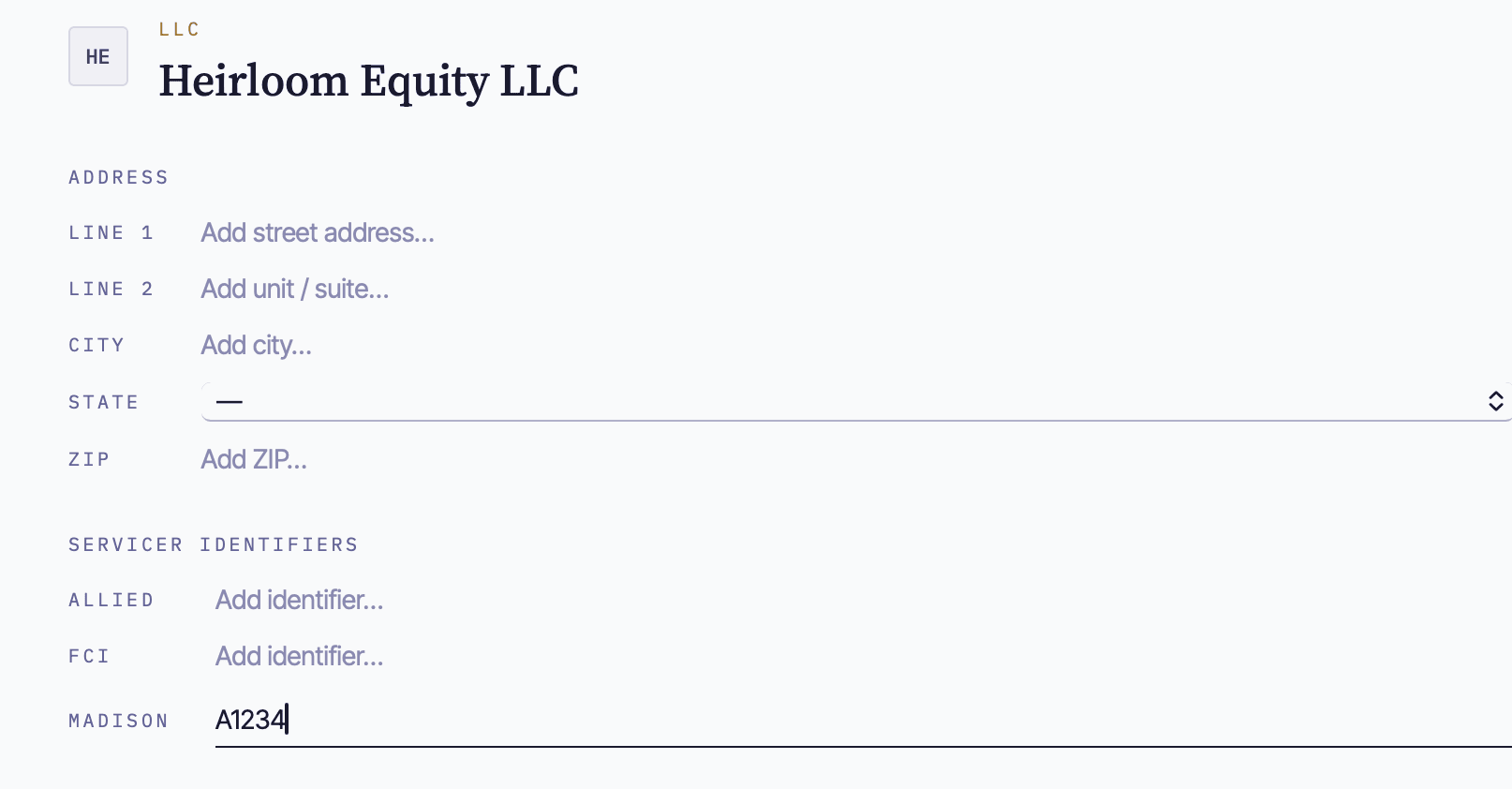
- In the top-right user menu, click your email, then click Entities in the dropdown.
- On the entity detail page, click Edit.
- Scroll down to the Servicer Identifiers section.
- Enter your Madison investor ID in the Madison field. The placeholder text reads Investor/account ID — replace it with the actual value Madison provided (for example,
X1234). - Click Save to update the entity.
Repeat for every entity whose loans are serviced by Madison.
Confirm the Configured state
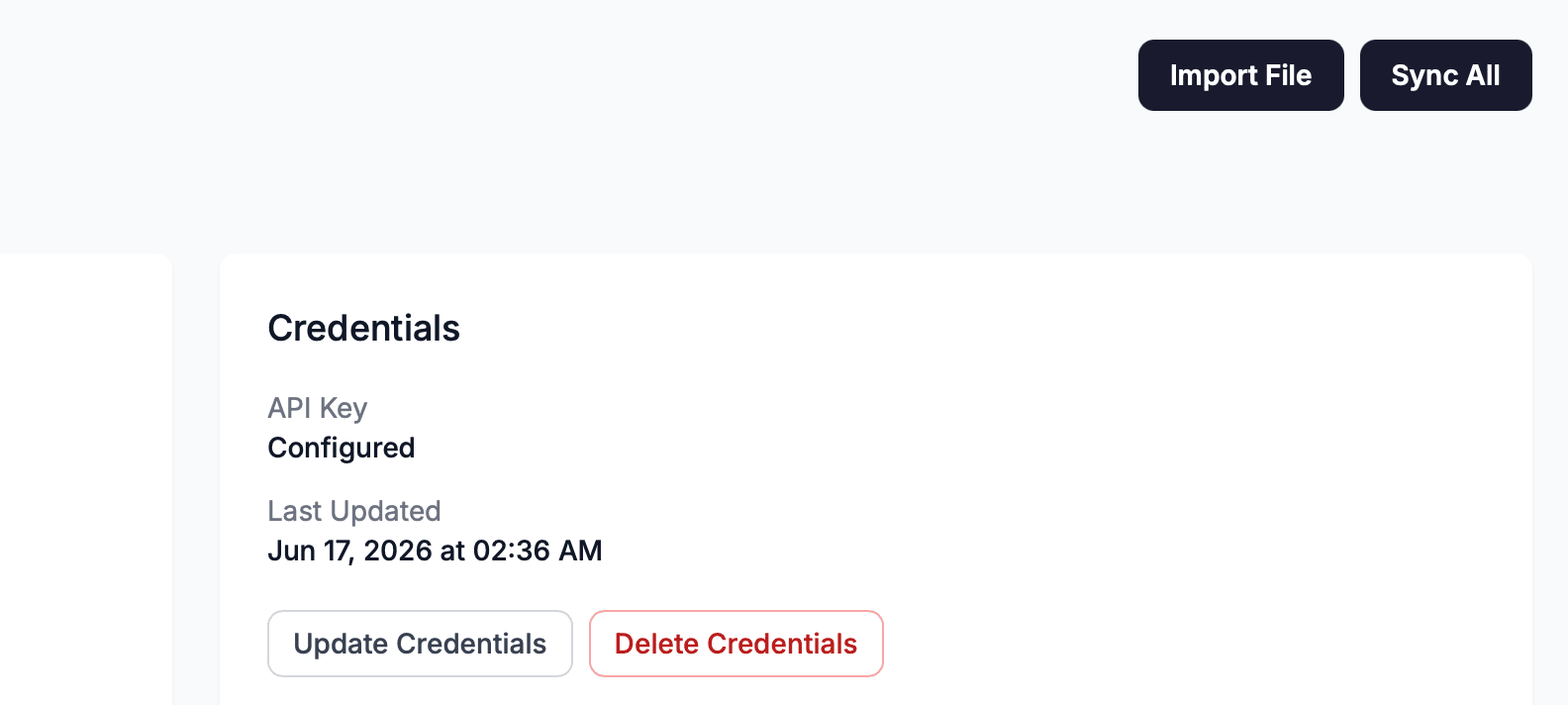
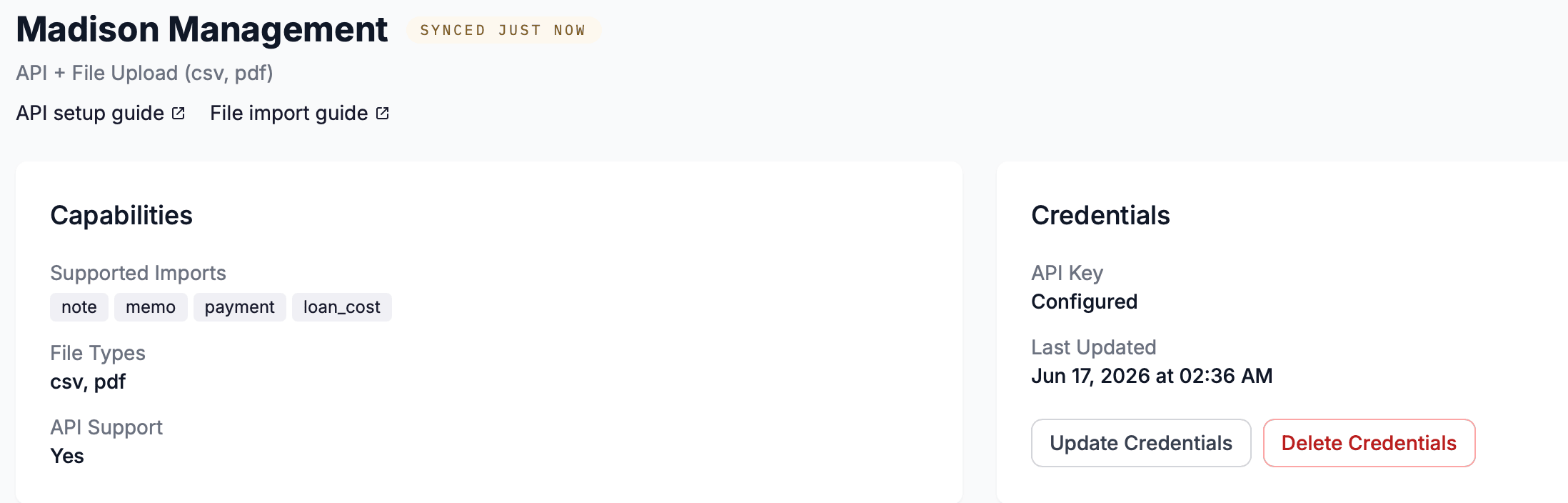
Back on the Madison Management detail page, the Credentials section now shows the API Key row as Configured along with the date the credentials were last updated. The card on the main Servicers page will also update its badge to Configured.
If the credentials section still shows "No credentials configured," the save did not complete — repeat steps 4–6 and ensure you are pasting the full key without extra spaces.
Trigger the first sync
Return to the Madison Management detail page (user menu → Servicers → Madison Management). In the top-right of the page header, click Sync All. NoteLedger calls the Madison API for every configured entity and imports notes, payments, and servicer notes.
When the sync completes, a Sync Results panel appears on the page showing how many records were created, updated, skipped, and whether any errors occurred.