Link your Google account so NoteLedger can import your Google contacts and automatically spot new contacts from the people you email — using only the sender and recipient details in your Gmail message headers. The whole process takes about two minutes.
Open the Integrations page
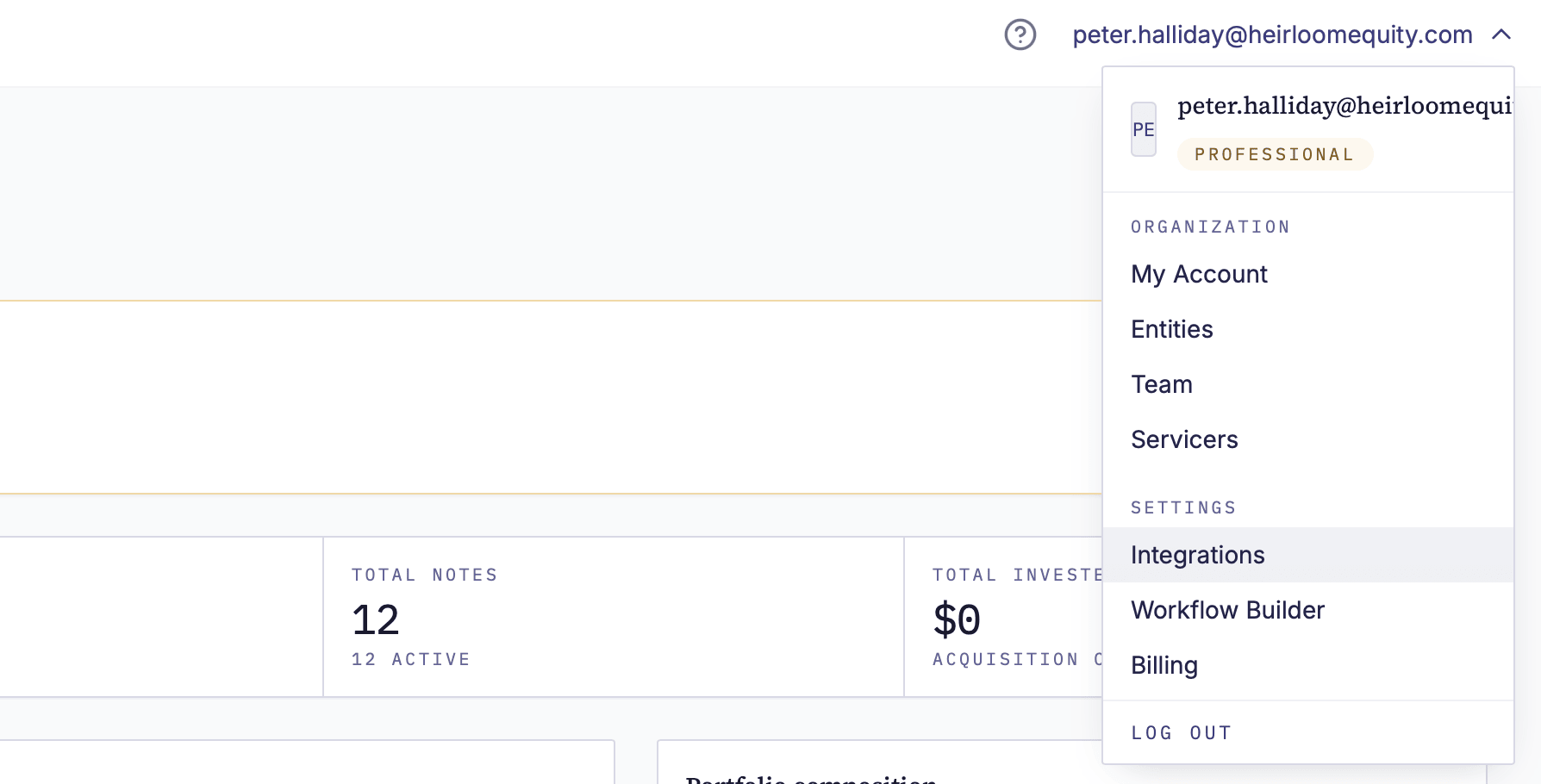
In the top-right corner of NoteLedger, click your account email to open the user menu. Click Integrations to open the Integrations page.
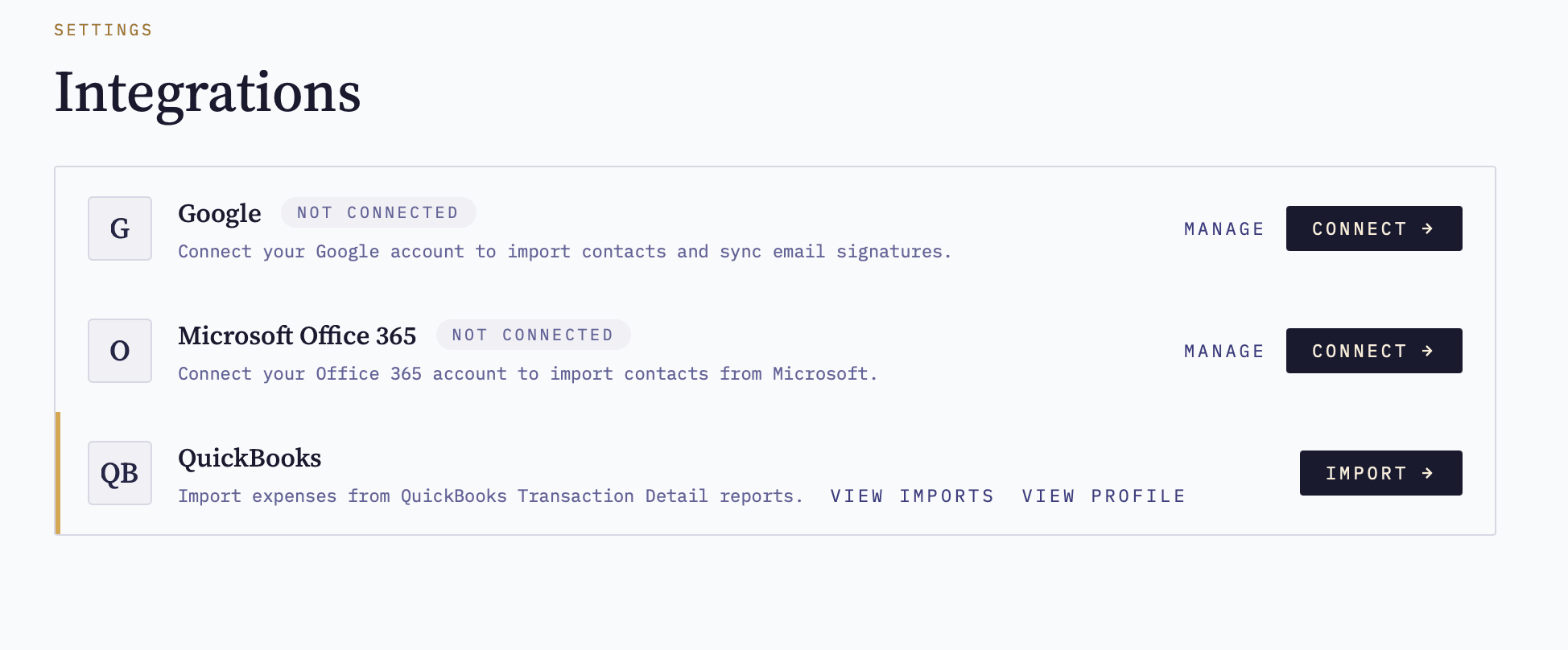
Find the Google card and click Connect
The Integrations page shows a card for each supported provider. Locate the Google card — its status badge shows Not connected until you complete this guide. At the right of the card, click the Connect button. NoteLedger will redirect your browser to Google's sign-in page.
Choose your Google account
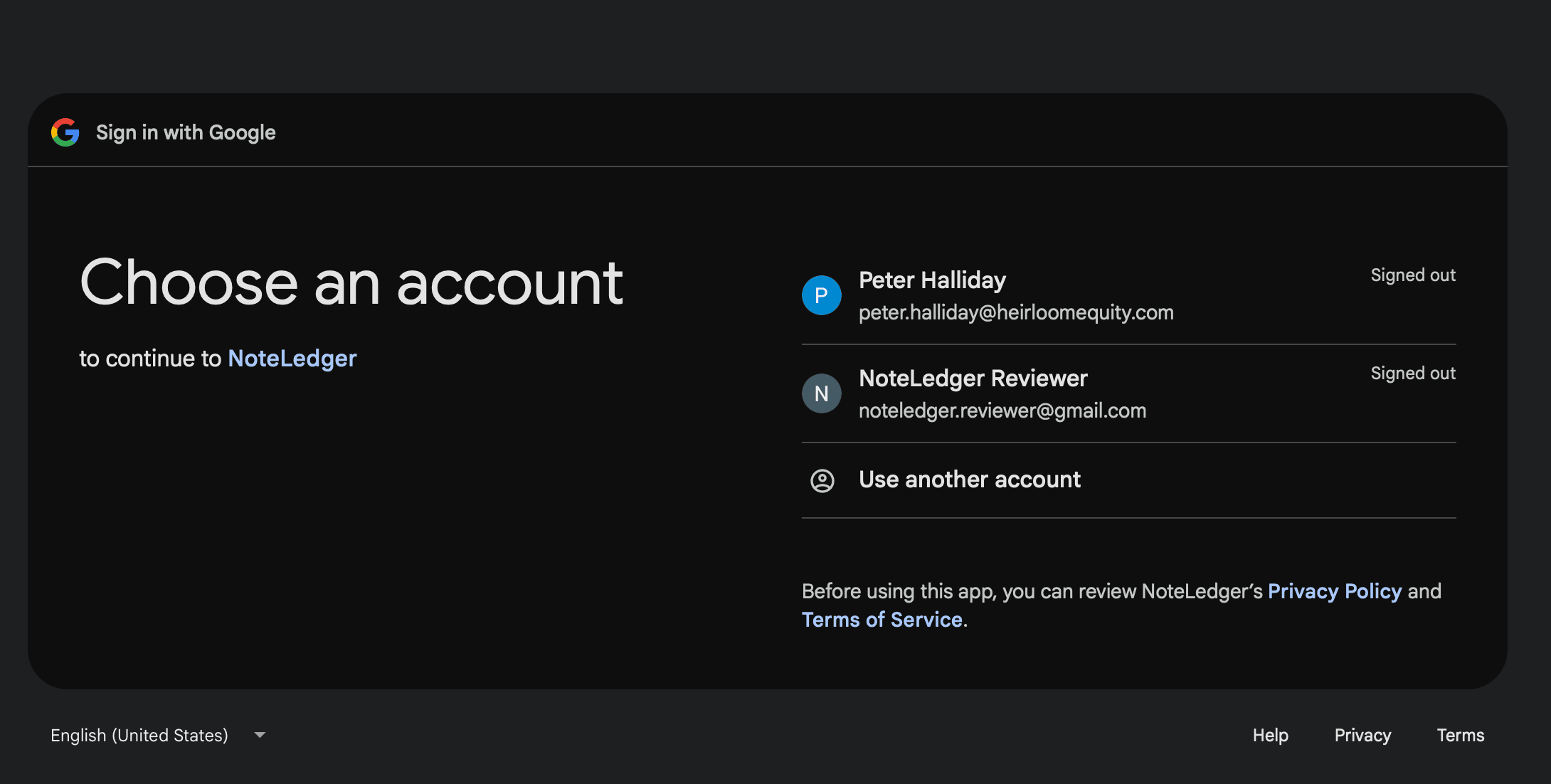
Google's sign-in page opens. Choose the Google account you want to link, or click "Use another account" to sign in with a different one. This should be the Google account that holds the contacts you want to import.
Enter your password
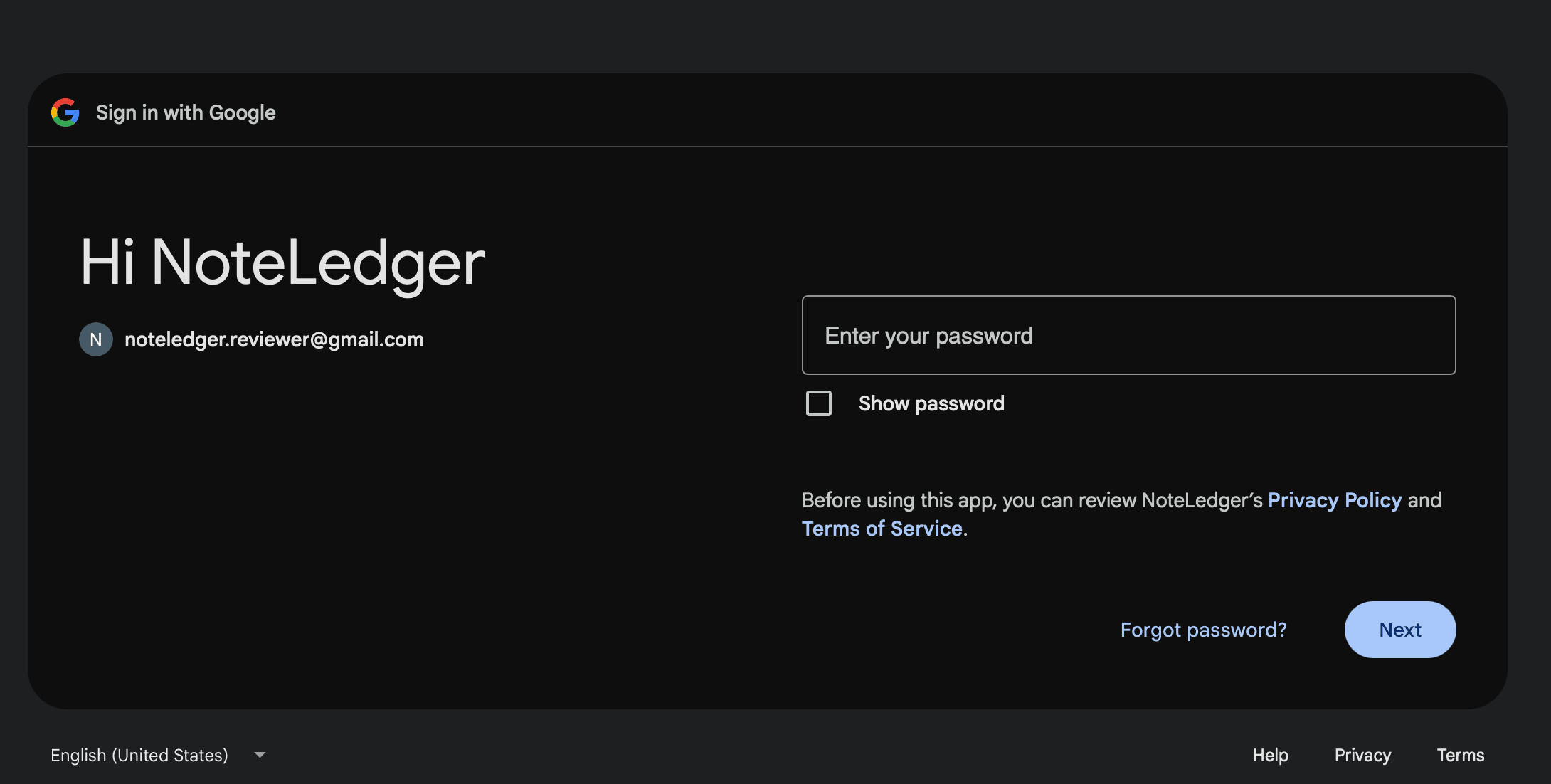
If you are not already signed in, Google asks for your password. Enter it and click Next. If you are already signed in to the account you picked, Google may skip this step and take you straight to the permissions screen.
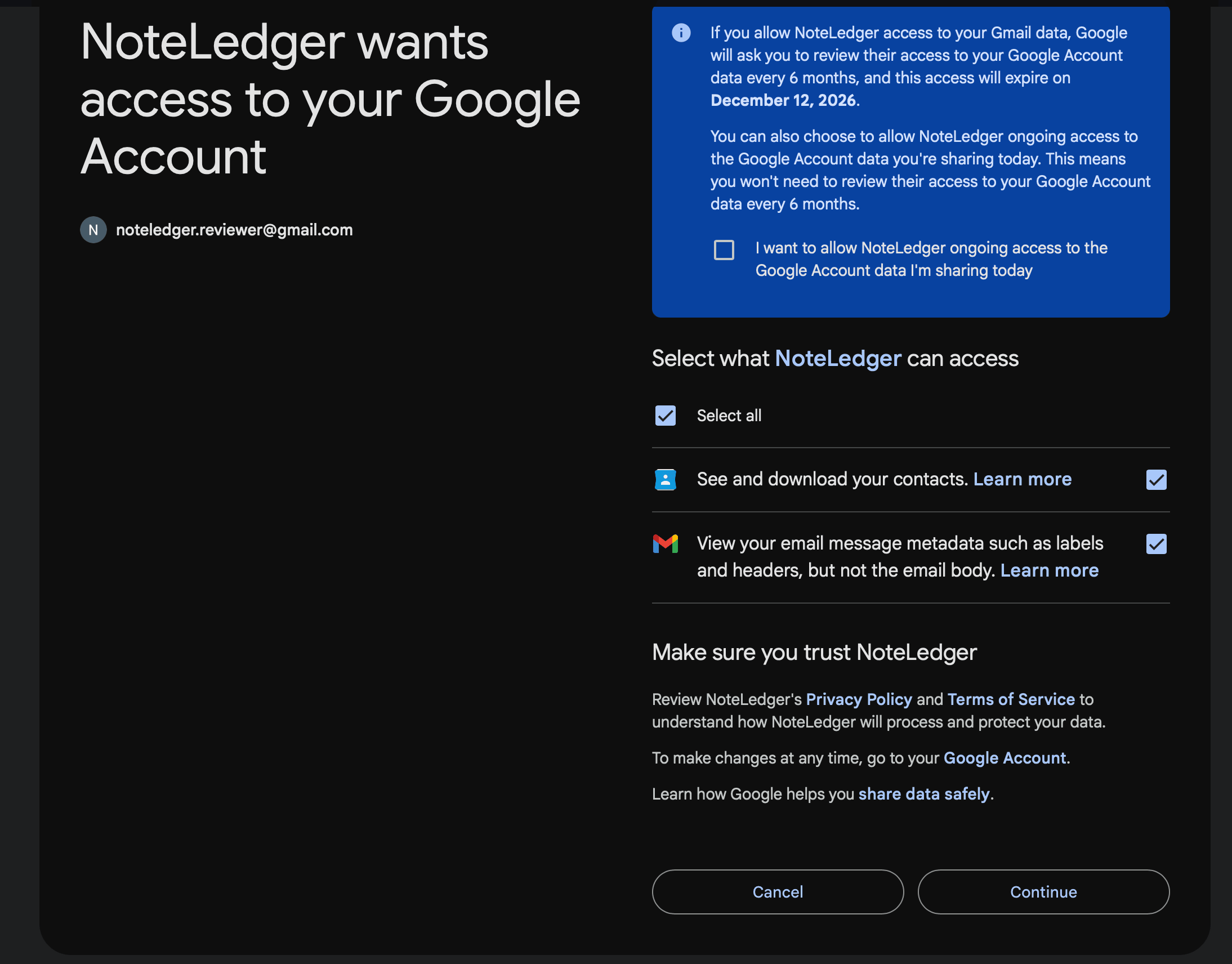
Review and approve the permissions
Google shows a screen listing what NoteLedger can access. Leave both items checked:
- See and download your contacts — NoteLedger uses this read-only access to import your contacts; it never edits or deletes them.
- View your email message metadata such as labels and headers, but not the email body — NoteLedger reads only the From, To, and Subject headers to detect the people you correspond with; it never reads the body of your messages.
Click Continue to grant access.
Confirm the connection
Google redirects you back to NoteLedger's Integrations page, where a "Google connected. You can now import contacts." banner appears. On the Google card, the status badge now reads Connected with a "Synced just now" label, and the linked Google email address is shown beneath the card title.
